Honhar Engineer

Honhar Engineer
Thanks for visiting,stay connected for more updates !

Wednesday, April 9, 2014

Fix sound mute in Kali Linux on boot

If you’ve installed Kali Linux then you already know that the sound option is mute or disabled at the boot. No matter what you do, next time you restart Kali Linux, you will again have sound mute in Kali Linux on boot. You might want to start Kali Linux with a great sound effect (Ka-BOOM!!) or you probably spend a few moments to unmute sound and then turn on the volume. After sometime, this gets annoying and you start looking into the wide world of web (actually the correct term is World Wide Web aka WWW but you already knew that!) and ended up here. So let’s not wait more and fix this issue once and for all.
In this guide we will fix 2 things
  1. Fix sound mute in Kali Linux on boot time.
  2. Keep that settings and volume from previous session.

Fix sound mute in Kali Linux on boot

Follow the steps below to fix sound mute in Kali Linux on boot
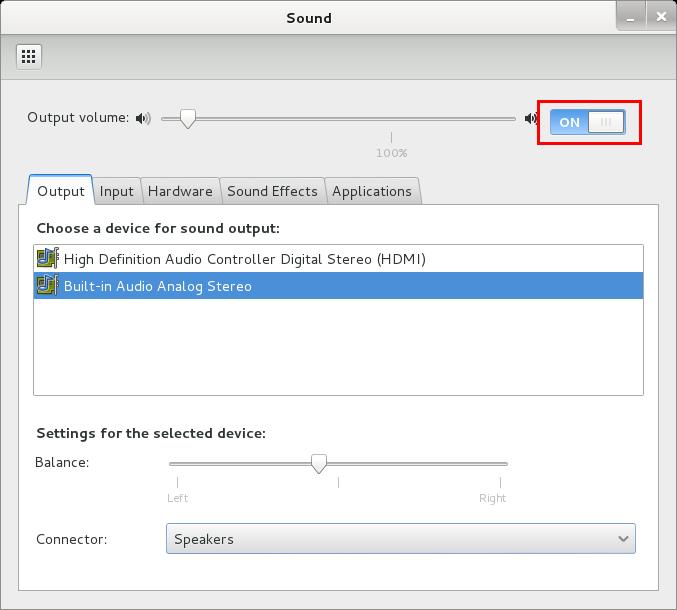
Go to Applications > System Tools > Preferences  > System Settings > Sound to bring up the same options.
Now you should see the following screen:
Fix sound mute in Kali Linux on boot - 2 - blackMORE Ops

  • Use the Output volume slider to ON, shown similar the screenshot above. That’s it you’re done. Close Sound window.
Debian and Kali Linux users also see this warning “(warning) in Kali Linux and Debian problem during boot time”. If you’re here looking for a solution follow this other guide Fixing PulseAudio configured for per-user sessions … (warning) in Kali Linux and Debian 

Finally restart to confirm

Once restarted, your Kali Linux should retain volume control and this should fix sound mute in Kali Linux on boot.
Hope this was helpful to you. 
Thanks for reading and please share.

Fixing PulseAudio configured for per-user sessions … (warning) in Kali Linux and Debian

What is PulseAudio:

PulseAudio Logo
PulseAudio is a sound system for POSIX OSes, meaning that it is a proxy for your sound applications. It allows you to do advanced operations on your sound data as it passes between your application and your hardware. Things like transferring the audio to a different machine, changing the sample format or channel count and mixing several sounds into one are easily achieved using a sound server.
It is an integral part of all relevant modern Linux distributions (Debian, Kali Linux etc.) and used in various mobile devices by multiple vendors.

Features

The main features includes:
  1. Per-application volume controls
  2. An extensible plugin architecture with support for loadable modules
  3. Compatibility with many popular audio applications
  4. Support for multiple audio sources and sinks
  5. Low-latency operation and latency measurement
  6. A zero-copy memory architecture for processor resource efficiency
  7. Ability to discover other computers using PulseAudio on the local network and play sound through their speakers directly
  8. Ability to change which output device an application plays sound through while the application is playing sound (without the application needing to support this, and indeed without even being aware that this happened)
  9. A command-line interface with scripting capabilities
  10. A sound daemon with command line reconfiguration capabilities
  11. Built-in sample conversion and resampling capabilities
  12. The ability to combine multiple sound cards into one
  13. The ability to synchronize multiple playback streams
  14. Bluetooth audio devices with dynamic detection
  15. The ability to enable system wide equalization

The Warning Message during boot

My Kali throws me this warning:
[warn] PulseAudio configured for per-user sessions ... (warning).
Debian variants also throws similar warning during boot.

To fix this do

Open terminal and copy the following 
leafpad /etc/default/pulseaudio

Find this line:
PULSEAUDIO_SYSTEM_START=0
Replace 0 with 1

PULSEAUDIO_SYSTEM_START=1
Where,
0 = don’t start in system mode, 1 = start in system mode
 
Reboot

Done...!!!

Tuesday, April 8, 2014

How To Find Your Own Mobile Number For All Operators

A guide about how to Find Your Own Mobile Number for Airtel , vodafone , Docomo , Aircel , Uninor , Reliance and Idea. Sometime We Forget our number or Sometime when  we take the new SIM that time we need to remember our number . This article tells you the solution for you by dialing USSD code on your Mobile phone you will be able get Your own Mobile number.
How To Find Your Own Mobile Number

-In Airtel

  1. *121*9#
  2. *140*1600#
  3. *400*2*1*10#
  4. *140*6575#
Dial the above USSD code on your Mobile phone to get your own Mobile number.

-In Vodafone

Type *111*2# and Press OK

-In Idea

Type *1# and Press OK or *798#

-In Aircel

Type *122*131#  and Press OK or try *#1# and Press Ok

-In Docomo

Dial the below given USSD
  1. *580#
  2. *1#
  3. *124#

-In Reliance

  1. *1#
  2. *111#

-In Uninor

Type *1# and Press OK if it does not work type 1 to 9 between *and # and Dial.
The above USSD code might be not work for everyone as the codes are area dependent. If you Know other working USSD to know own mobile number please write in comment area we will add it in this post.

How to Activate 3G On All Indian Telecom Networks

How to Activate 3G on All Indian Telecom Network Like Airtel , Aircel , Vodafone , Reliance , Idea , BSNL and Tata Docomo . Well This is The Generation Of Fast Internet Services so Everyone Wants to Use the 3G Services on Mobile Phone . Now A days All Mobile Phone Company are Making 3G Enabled Handset.
activate 3g


Here We have Brought to you 3G activation Procedure For All Indian Telecom network like  Airtel , Aircel , Vodafone , Reliance , Idea , BSNL and Tata Docomo .

3G Activation Procedure

Activate 3G on Airtel 
There is two to to activate 3G on Airtel either you Call the number 12134 or Send a SMS 3G to 121 . Airtel 3G Will be Activated on your Mobile Phone with Zero Rental Plan.
Activate 3G on Aircel
You need to type a Message START 3G and Send it to 121 . Setting will be delivered on your mobile phone  For Aircel 3G, Save the Settings and Start Browsing the Aircel 3G .
Activate 3G on Vodafone
Type an SMS ACT 3G and Send it to 111 For Post Paid users
Type an SMS  ACT 3G and Send it  To 144 For Prepaid users
Activate 3G on BSNL
To Activate BSNL 3G Please Type Message your Mobile Phone Company Name and model number of your mobile and send to the number 58355 .
Activate 3G on Idea
It is easy to start 3G Service in Idea Mobile Phone , Type  an SMS ACT 3G and Send it to  12345 .
Activate 3G on Reliance
To activate 3G in Reliance Please Type START 3G and Send it to  53733
Activate 3G on Tata Docomo 
To Activate TATA Docomo 3G Please send the message as 3Glife to 53333 .
We have Included All Way to Activate 3G For Above telecom Networks . If you are Still getting Problem and Not Able to Activate 3G On your Mobile For your Telecom Network Please Write in Comment Area or You Can Call the Respective Telecom Network Customer care For More Information.

APN ( Access Point Name ) For All Mobile Operator

If you want to Access internet on your mobile phone or PC you must have the Mobile Operator Access point Name ( APN ) . APN is Connector which works as getaway between your Computer to GPRS or 3G service. In Simple word APN will connect you to Internet. By Default we get Configuration in many mobile phone but some times we need to do it manually or if you are using intent on your PC through mobile phone you will need for manually setting  where you must know about APN.
apn list


APN ( Access Point Name ) List

  • Airtel APN  - airtelgprs.com
  • Vodafone APN – www
  • Idea APN - internet , imis
  • Aircel APN – aircelwap , aircelgprs
  • Uninor APN -Uninor ( U Must be written in Capital Letter )
  • Videocon APN – vinternet.com
  • BSNL APN – bsnlnet
  • TATA Docomo APN – TATA.DOCOMO.INTERNET
  • Reliance APN – rcomnet, smarinet , rcomwap
  • Virgin Mobile APN - vinternet
  • Loop Mobile APN - www
Please Note APN must be written in same letter  which I have written. If you are getting any problem please leave comment I am always ready to help you – Honhar Engineer

Tuesday, April 1, 2014

How to disable silent and automatic updates in Chrome for Windows

When you install a program on to your computer it is important that the owner has full control over what actions are performed by this program. Whether that be because the machine is in an enterprise setting and you need to have perform patch testing or because your a consumer who wants to be notified and give consent when a program is being updated. Regardless of your reasons, it is every users right to know what program is running, when it is running, and why it is running. With this in mind, this tutorial will provide instructions on how to turn off the silent and automatic updates in Google Chrome. In fact, some of the steps described here will work for almost all Google applications available, but for this guide we will focus entirely on Google Chrome.
There are two methods to control how updating occurs in Windows Google applications. The first is through a Group Policy Editor administrative template that is provided by Google. The second method is to manually modify Windows Registry keys that control the behavior of Google applications in regards to how they update. This guide will provide instructions on using both methods as not every version of Windows has access to the Group Policy Editor. For those who do not feel comfortable with the Windows Registry Editor, I have also created a Registry file that enables manual updates for Google Chrome and another one that enables Chrome's default update policy of using silent updates.
It is strongly advised that you continue to update Chrome, and any other application for that matter, when new updates become available regardless of how these updates are found. Outdated programs are a prime vector for malware infections and computer data theft and by not updating your programs you put yourself, your data, and your computer at risk. So even if you set Chrome to use manual updates, please routinely check for updates in order keep Chrome secure.
Is is also important to note that Google Chrome includes Adobe Flash as an integrated plugin. That means that if there a security vulnerability in Flash, which is a common vector for malware infections, you will need to update Chrome in order to receive the latest version of Flash. Therefore, only disable automatic updates if you are in a controlled environment or routinely check for new versions.

Disable Chrome Silent Updates via the Windows Registry
One method to disable silent updates in Chrome is to manually add the policies to the Windows Registry. If you do not care about the specifics of the Windows Registry configurations, you can skip to the Registry files below that can disable and enable silent updates in Chrome. The Windows Registry key responsible for determining how Google Update updates Chrome can be found in the following Registry key and value:
HKEY_LOCAL_MACHINE\SOFTWARE\Policies\Google\Update "Update{8A69D345-D564-463C-AFF1-A69D9E530F96}"
This value can have 4 different DWORD settings assigned to it that describe how Chrome will be updated. These different DWORD values are:
0 - This setting corresponds to the Updates disabled policy setting. This means updates are completely disabled for Chrome.

1 - This setting corresponds to the Always allow updates policy setting. This means that updates are always installed regardless of whether they were found via periodic silent updates or a manual update check.
2 - This setting corresponds to the Manual updates only policy setting. This means updates are only applied when a user performs a manual check.
3 - This setting corresponds to the Automatic silent updates only policy setting. This means updates are only installed when they are found via the periodic silent update check.
To change the Google Update setting for Chrome simply create the above key and value and assign one of the above value.
For those who do not want to mess with the Windows Registry and just want to enable manual updates, I have created two Windows Registry files. The first one will enable Manual updates and the second one will restore Chrome back to its normal defaults of updates being installed via silent updates or manual updates.
Registry file to set Chrome to Manual Updates only
Registry file to reset Chrome back to its default update policy (Manual+Silent Updates)
Simply download one of the above Registry files and save them to your desktop. Then double-click on the registry file and allow the changes to be merged into the Registry. The changes to Google Update for Chrome will now be set.

How to manually check for updates in Google Chrome
If you decide to disable silent updates, then it is becomes important to know how to update Chrome manually. To update Chrome, simply start the program and click on the wrench icon (Wrench icon) in the upper right-hand corner. When the menu appears, click on the About Google Chrome menu item. If there is a new update available, Chrome will alert you in the About Chrome screen and provide instructions on how to apply that update.