
Honhar Engineer

Honhar Engineer
Thanks for visiting,stay connected for more updates !
Showing posts with label Iphone. Show all posts

Sunday, April 26, 2015

how to remove/fix iPhone/iPad/iPod stuck on red iTunes logo


http://honharengineer.blogspot.in/


The strange and dead red iTunes logo screen is called recovery mode screen. This iPhone, iPad, iPod stuck on "Plug into iTunes" screen mostly happens during iOS (iOS 8.2/8.1/8) update, iDevice jailbreak, etc. But with freeware ReiBoot (Mac), a powerful iOS recovery mode fixed software, red iTunes logo on iOS devices (iPhone 6/6 Plus/5s/5c/5/4s, iPa d Air 2, iPad Air, iPad mini 3/2, iPad mini, iPad 4/3/2 and iPod touch 5) will be solved quickly.

Below are the steps how it works:
    • Step 1: Free download and install ReiBoot (Mac) on your Mac models running Mac OS X 10.10 Yosemite, 10.9 Mavericks, 10.8, 10.7, 10.6, 10.5.

      Free Trial ReiBoot Software
      Version: 3.1.0.0
      Windows Secure Download
                                           Version: 3.0.0.0
                                           Mac Secure Download
              Note: Windows 8.1/8/7XP/Vista users go for ReiBoot (Windows ).
    • Step 2: Connect your device with a USB cable.
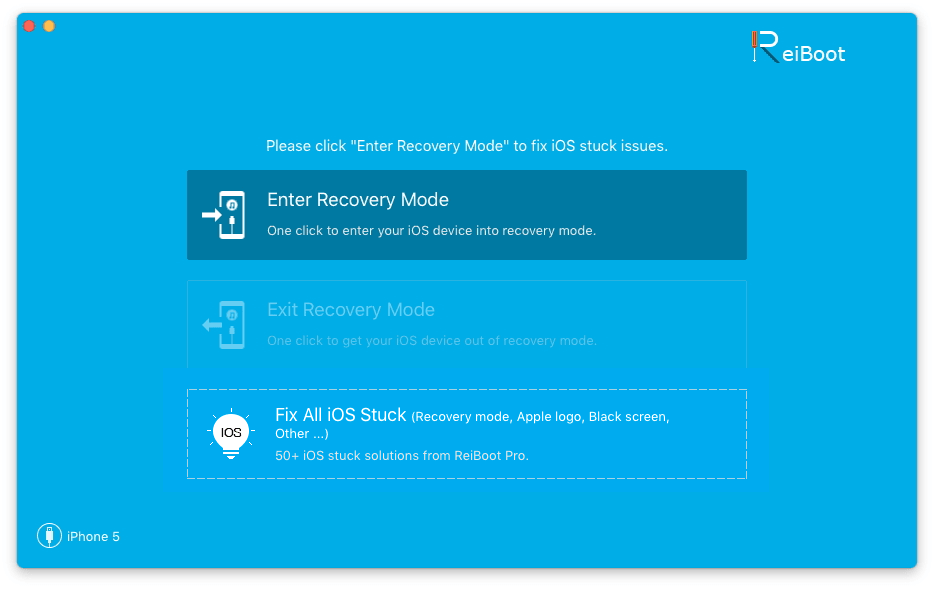
    • Step 3: Run Reiboot Software. After your device is successfully detected, click on "Enter Recovery Mode" on the main interface.
    • Step 4: Click on "Exit Recovery Mode", then your device will reboot and return to normal.
      iphone 6 red itunes logo
    • ReiBoot causes no data loss or data damage to your iOS device. So, use it with no worries.
    No need to restore your iPhone, iPad, iPod to factory settings, no need to hold any button like Power or Home button. This red iTunes logo on iPhone, iPad, iPod is easily solved with one click.

    *If this software didn't help much then you should restore your iPhone/iPad/iPod to factory settings.

    Don't forget to thank me if it works for you otherwise also comment if you are still facing the same problem.
     

    Saturday, January 31, 2015

    whatsapp working slow or delay in incoming messages

    http://honharengineer.blogspot.in/


    Make sure to have a strong internet signal on your phone

    Make sure your phone has an internet connection. You can check this by opening a browser and going to a website. If you're having connection problems, try these connection steps.
    If web pages work, but WhatsApp doesn't, you will need to contact your mobile provider and system administrator and make sure that your APN and router are configured correctly to allow non-web and socket connections.


     You may just need to change the notification settings in WhatsApp

    1. Open WhatsApp.
    2. Push the Menu Button.
    3. Tap Settings > Notifications.
    In this menu, you have options for Message Notifications and Group Notifications. Adjust the settings to your liking.


    If messages are still taking too long to reach your phone

    It may be that you are not receiving your message pushes from Google's push notification service.
    We recommend that you:
    • Reboot the phone (Turn it OFF then ON).
    • Delete and reinstall WhatsApp.
    • Make sure that Background data is allowed under Settings > Data Usage > Menu Button.
    • Launch the Hangouts app, press the Menu Button, and sign out of all of your accounts (tap the account, scroll down and select Sign out). Then re-launch Hangouts and sign back in to your account(s).
    • Turn off Wi-Fi.
    • If you are often connected to Wi-Fi, check your Wi-Fi sleep policy (Settings > Wi-Fi > Menu Button > Advanced > Keep Wi-Fi on during sleep) and make sure it is set to Always.
    • For Android OS 4.4 and above, make sure that Wi-Fi optimization is unchecked (Settings > Wi-Fi > Menu Button > Advanced > Wi-Fi optimization).
    • For HTC devices, try turning off fast boot in Device Settings > Power > Fast Boot (make sure it is unchecked). You may also try turning off Power Saver, Extreme Power Saving Mode and Sleep Mode. Make sure to reboot your device after changing the settings to ensure the changes are applied.
    • Make sure to uninstall any task killers, these will keep the app from receiving messages when you are not in the app.
    • If you have no idea what a task killer is, then you probably don’t have one.
    I guess your problem should be solved by above steps and if its still not solved then let me know and don't forget to comment if it works for you.


    Tuesday, January 27, 2015

    how to add an international contact's phone number on whatsapp


    http://honharengineer.blogspot.in/


    For local numbers(Your Country): Enter the phone number as if you were calling your friend on the phone.


    For international numbers(Other than your country): Check to make sure the number is in the proper format with proper country codes.

    Details:
    When adding a contact's international number to your phone address book, start with a plus sign (+). Then, write the country code, followed by the full phone number.

    For example,
    Country Name:  India
    Country Code :  91 
    Phone Number: 9425746321
    Phone Number should be saved as: +919425746321

    Your friend's phone number must be saved in your phone's address book in order for you to start a chat with them in WhatsApp.
    So, now just refresh contact list in WhatsApp and you can start a chat with these contacts.


    Sunday, January 25, 2015

    step by step guide for how to use whatsapp on laptop or PC


    http://honharengineer.blogspot.in/


    (Only Google Chrome browser is supported now so, make sure to install it on your laptop or PC)

    http://honharengineer.blogspot.in/


    • Click on WhatsApp Web in your whatsapp menu on your smartphone.
              (Make sure you have lastet version of whatsapp installed)

    http://honharengineer.blogspot.in/


    •  Now you will get a screen for instruction to how to scan QR code just click on OK, GOT IT.
    http://honharengineer.blogspot.in/


    • Now scan QR code which is visible on your laptop or PC by using your smartphone.

    http://honharengineer.blogspot.in/


    • After successful scan you will see your whatsapp chat screen on your laptop or PC
     
    http://honharengineer.blogspot.in/


    Friday, July 26, 2013

    How to Get Apple iOS 7 Theme on Android Device

    Apple announced the iOS7 for iPhones, iPod, iPads etc. They have brought in some new features with their update to the iOS. Now users have all new themed launcher or app drawer. It has got a refreshing look and feel with the new icons. And not to forget the Control center. It makes easier to access the quick toggles such as wifi etc. The new lockscreen and there's even more
    If you are one of the people who loved the new IOS7 UI and want to try it! Well then then you don't need to buy an iPhone. You can theme your Android device like Apple iOS7. We have selected some apps to make your Android device run iOS 7.

    iLauncher
    This is an iPhone style home screen launcher. Features smooth scrolling through apps. Icons have rounded corners and gloss effects. You can long touch icons to move them around and position them as you like. You also get a Dock-bar. Easily uninstall apps from your home screen. Press the back button to exit edit mode. Can change each application's name and icon by touching the app shortly in jiggle mode. It supporta 5 rows mode, just like iPhone 5. Create folders & shortcuts. iLauncher support tablets (iPad mode) with Changable logo and live wallpapers too. But to enjoy this you will have to pay for it
    Tip:- For a alternative to iLauncher you can download any launcher from play store and just search for a iOS 7 theme compatible for it. For example on Go ex launcher.
    Control Center
    Its a total look a like of the Control center what we found an the IOS 7. Inspired from iOS this app features same functionallity wit toggles for Wi-Fi, Bluetooth and for your apps. You can directly adjust the brightness etc right from it. Must try! And its free! There is also a pro version for which you'll have to pay.
    iOS 7 Live Wallpaper 3D
    Aside from what iOS 7 wallpaper design, you can also choose background color and have a background pattern. You can control your background pattern opacity on setting. The iOS 7 color gradient will change color over time. It has got a Bokeh Effect. There are 3 bokeh type on this live wallpaper. You can enable/disable each of. these bokeh or choose their opacity. And also there is Parallax Effect 
    Fake iPhone iOS 7 Lock screen
    It features Pin Code unlock, Enhanced control panel including: flashlight, brightness control, clock and calculator. With 3 iOS 7 themes you can choose your own lock screen background. Excellent performance and much more
    Now there you have it iOS 7 Launcher, Control center, Lockscreen, Live Wallpaper. A full iOS 7 themed look right on your android device. Enjoy!

    Thursday, July 25, 2013

    First Ever iPhone Malware Scanner

    VirusBarrierA French security company known for its Mac OS X antivirus software today released the first malware-scanning app for the iPhone and iPad and iPod Touch.
    Intego’s VirusBarrier for iOS has been approved by Apple, and debuted on the App Store Tuesday for $2.99.
    Because iOS prevents the program from accessing the file system or conducting automatic or scheduled scans — as do virtually all Mac and Windows antivirus software — VirusBarrier must be manually engaged, and then scans only file attachments and files on remote servers, said Peter James, a spokesman for Intego.
    VirusBarrier for iOS can scan email attachments in a variety of formats, including Microsoft’s Word, Excel and PowerPoint; PDF documents; JavaScript files; and Windows executables, those files tagged with the .exe extension. It can also scan files in a Dropbox folder, those stored on MobileMe’s iDisk, or files downloaded via the iOS version of Safari.
    The scanning engine and signatures — the digital “fingerprints” used to detect malware — in VirusBarrier for iOS are identical to those used by Intego’s Mac OS X product line.
    VirusBarrier for iOS lets iPhone and iPad users run on-demand scans of email attachments before those files are opened or forwarded.
    When an email attachment is received by the iPhone, iPad or iPod Touch, the user can intercede by calling on VirusBarrier, which then scans the file for possible infection before the file is opened or forwarded to others.
    VirusBarrier for iOS can be downloaded to an iPhone, iPad or iPod Touch from Apple’s App Store. It requires iOS 4.0 or later.

    Tuesday, July 23, 2013

    How to Run Multiple WhatsApp Account on Your Android


    Although everything is quite handy in WhatsApp, but if you are a dual SIM Android user, you might be willing to enjoy two different WhatsApp account for your two different numbers on your Android. Isn’t it? Earlier it seemed to be a very difficult task, but later or sooner, we are here with “How to run multiple WhatsApp account on your Android” :

    *First of all, you need :

    • A rooted Android device.
    • SwitchMe multiple accounts app for your rooted Android (Play Store link).
    SwitchMe allows you to log in and out of multiple user spaces just as you would on a desktop computer, with each account having its own system settings, apps and data.
    • WhatsApp for your device (Play Store link).
    • Make sure you have plenty of space on your device SD card and Phone memory.
    Note: Do this at your own risk. You are doing this because you want to do this. Neither me nor the developer is responsible if anything happens to your device as running rooted Android apps is always subjected to risk factors. Although this trick worked on my Xperia successfully. Don’t forget to take Nandroid backup in case anything goes wrong.

    *How to run multiple WhatsApp account on your Android :

    • Done with Installing SwitchMe app? If yes, follow the steps provided below.
    • Open the SwitchMe app and create two different user profiles for running two different WhatsApp account. These user profiles will have their own own system settings, apps and data.
    • The First user profile you created will work as an Administrator and this account will contain all the apps and data that you are having now. You will be having WhatsApp on this profile if you are using it on your device earlier.
    • The second user profile is the new one, and will contain your Another WhatsApp account.
    Switch to this account—> Set up your phone for this account—> Open Play Store—> Install WhatsApp.
    • Now, register WhatsApp for your second SIM in this profile. Done? Congratulations! You successfully activated  multiple WhatsApp account on your Android.
    Though you cannot run both profiles simultaneously, so it’s obvious running two WhatsApp account simultaneously is not possible with this trick. But more or less, you can run multiple WhatsApp account on your Android now.  
    Facing any problem? Do let us know through the comment section provided below.

    Sunday, July 21, 2013

    Hide Last Seen/Online Status features in Whatsapp


    Today i am talking about how to hide Last Seen/Online Status features in whatsapp. Whatsapp is a messing application which allows to send and recieve messages, images, audio clips, videos clips etc quickly at free of cost. You may also like this how to download and run whatsapp on pc. Apple user use this whatsapp app for lifetime but   android user have only one year subscription but don't worry use this trick to make whatsapp lifetime for free. Previously, I shared more whatsapp tricks go whatsapp category. Today, I shared very cool trick for whatsapp, how to hide Last Seen/Online Status features in whatsapp. Many users want to hide Last Seen/Online Status in whatsapp. So follow simple steps to hide Last Seen/Online Status in whatsapp app.

    How to Hide Last Seen/Online Status features in Whatsapp :

    1. First of all, you need to Open whatsapp app in your iPhone.

    2. Go to whatsapp Settings.

    3. Now go Chat Settings > Advanced > Last Seen Timestamp Off

    4. Now this feature take 24 hours to effect, also take 24 hours to toogle it back. After that no one trace your  last seen time. If you are online that it appear as Online.

    5. Now if want to hide Online Status, follow simple steps
    When you open whatsapp your online time is saved by app, and it appears your whatsapp profile to your friends or other user account, So basically you need to do following,

    • First you want to Disable your Data or any other internet connaction
    • Now Open whatsapp app and read message.
    • Now Exit whasapp app completely
    • Enable your Data or any other internet connection.

    Now your Last Sennis not updated, Enjoy

    Your also Download Whatsapp not Last Seen &
     Whatsapp Last Seen and Lock for android in Google Play Store. Also download Whatsapp Tools Whatsapp widgets from Goolge Play Store.

    Wednesday, June 26, 2013

    HOW TO MAKE UNLIMITED FREE CALLS

    Here's a trick for Android and iPhone users only.

    1. First, download CROWD CALL software on your device n install it.
    2. Now when you start this software it'll ask you to enter your number and here just fill your number.
    3. Now enter destination number to which you want to call.
    4. Within 5 sec. you'll get a call on your number with an international number, 
    now just attend the call and press 1, and wait for few seconds.
    5. Now CrowdCall will connect you with your friend.
    P.S. : You can make 10 calls per day for unlimited time.
    Official Website : http://crowdcall.me/

    Tuesday, June 25, 2013

    Secret codes of Iphone

    *#06# - It is use to show IMEI of any phone means it will work on any Smartphone or mobile of any brand.
    *#21# - It gives information about the configuration of forwarding (calls, voice and data.)
    *#30# - Its functions is to report you either you enable / disabled status of calling line presentation.
    *#33# - This secret of iPhone will give you a list with multiple configurations like (call, sms, data,fax,etc) and               show whether they are enabled or not.
    *#43# - usually use to verify status of call waiting like sms, data, sync data, etc. in your iPhone.
    *#61# - Checking of number of missed calls.
    *#62# - verifies the number for forwarding calls in case of none of service is available.
    Recommended: World Most Cheapest Mobile Phone | 1 Pound
    *#67# - check the numbers for forwarding calls if your iPhone is busy.
    *#76# - By typing this number will give you information about your line presentation enabled or disabled status.
    *225# – This code is only available for prepaid lines in orderto show the accounts bill balance.
    *646# - Tel you information of the minutes remained in your account and only valid for only Postpaid ones.
    *777# - You can know detailed information of account balance ofprepaid iPhones
    *3282# -Get know about the use of data information.
    *3001#12345#* - it is use to reveal internal setting like Open the "Field Test" of the iPhone which enables us to learn many advanced data network from our iPhone. GSM, Wireless, 3G ... everything will be exposed here.